- The way not to do it: I thought you needed to select Site Actions > Edit Page and then Add a Web Part to add a Custom List to a Meeting Workspace.
 However, if you do that, you get a list of Web Parts that you can add, but not the list you would expect (or at least, the list I expected). I was looking for a way to add a Custom List, but just a few predefined Lists (Attendees, Directions, Discussion Board, ...) appeared. There was no way to add a Custom List:
- The way to do it: Simply select Site Actions > Create to add a Custom List to the Meeting Workspace. If you do that, you get the full list of things you can add:
 The List will be added to the left hand side at the bottom, but after creating it, you can select Site Actions > Edit Page to move the List somewhere.
Showing posts with label SharePoint 2007. Show all posts
Showing posts with label SharePoint 2007. Show all posts
Tuesday, January 15, 2008
SharePoint 2007 Quickie: Adding Lists to a Meeting WorkSpace
In a previous post, I complained about the fact that SharePoint 2007 is not intuitive enough. With this Quickie, I want to share the best way to add a List to a Meeting Workspace:


SharePoint 2007: More bugs
Unfortunately, my experiences with SharePoint 2007 are revealing more bug.
- I already mentioned the issue that after saving a Meeting Workspace as a template, the resulting Meeting Workspaces don't not keep the view settings that you defined in the template.
Specifically, I created custom lists in a Basic Meeting Workspace, saved it as a template and then used it as Meeting Workspace (created from Outlook).
In the template, the lists are defined as showing the All Items view with a Summary Toolbar: However, when actually using it, the meeting workspace always shows a different view, with a Full Toolbar. On top, one of the lists even shows a drop-down box where you can choose a view. It's not logical that this happens:
- When I tried to add a Column to a list, clicking the OK button did not do anything. Debugging the issue, the problem lies in a Javascript error: "Helperfrm is null or not an object". I'm not the only one with the problem. The only work-around I found was to use the FireFox browser (!) to create the column.


Friday, January 4, 2008
SharePoint 2007: 2-way synchronization with Outlook 2007
After experimenting a bit further, I am happy to see that there is 2-way synchronization for Calendars and Contact Lists between SharePoint 2007 and Outlook 2007.
Unfortunately, this does not work with Outlook 2003, as confirmed in another blog:
"Outlook 2003 can link to SharePoint Calendars and Contact Lists on your new MOSS 2007 server and download read-only copies of that content. Outlook integrates with MOSS servers in exactly the same way as any SharePoint server, so there's no additional limitations over the read-only nature of Outlook 2003's sync'ing feature. Upgrade to Outlook 2007 to get the full 2-way sync experience against MOSS.
Andrew Ash
Microsoft Outlook"
Unfortunately, this does not work with Outlook 2003, as confirmed in another blog:
"Outlook 2003 can link to SharePoint Calendars and Contact Lists on your new MOSS 2007 server and download read-only copies of that content. Outlook integrates with MOSS servers in exactly the same way as any SharePoint server, so there's no additional limitations over the read-only nature of Outlook 2003's sync'ing feature. Upgrade to Outlook 2007 to get the full 2-way sync experience against MOSS.
Andrew Ash
Microsoft Outlook"
An update on using SharePoint 2007 for a few weeks
I've been using SharePoint 2007 for a few weeks now and it's time for another update on my impressions about the product. I still think that SharePoint 2007 is a vast improvement over Sharepoint 2003, specifically in the area of usability. It's just a lot more intuitive.
Nice things about SharePoint 2007
Nice things about SharePoint 2007
- I was happy to see that the Recycle Bin not only allows for entire Lists or sites to be undeleted, it also is a safety net for individual List entries that have been deleted. The deleted items are in the Recycle Bin that can be accessed from the Quick Launch Panel on the home page:

- The Top Link Bar allows for easier navigation and can be easily customized:
 This tabbed interface is a lot more user-friendly that the somewhat obscure predefined top line of SharePoint 2003:
- Calendar entries can have all-day events (finally!):


- SharePoint 2007 still is not intuitive enough. I wanted to add a link to the Top Link Bar, and it took me a while (and the use of the Help documentation) to find out how I can do that. (Site Actions > Site Settings > Look and Feel: Top Link Bar)
- SharePoint 2007 still is not consistent: while you can add any link to the Top Bar, including Lists, SharePoint does not recognize this as a part of the same SharePoint site: if you click on the tab, the List is shown, but the tab is not "highlighted". Instead, the "Home" tab stays highlighted, which is confusing. In the example below, I created an Calendar called Out Of Office. I added it as a link to the Top Link Bar, and when I click on the tab, the Calendar is shown, but the Home tab is still highlighted:
 It works as expected with a subsite: I created the subsite Test, and selected the site to be displayed in the Top Link Bar. When clicking the Test tab, it stays highlighted:
- SharePoint 2007 contains bugs. I've created a special Meeting Workspace that I saved as a template. When creating new instances, some of the Lists that I defined use the default view even though I changed the view to be different. From my tests, it looks like this only affects Custom Lists.


Friday, November 30, 2007
SharePoint 2007: What's new
Some further reading and testing with SharePoint 2007 has only increased my enthusiasm. Without having it all tested extensively, the new things I like are:
- The Recycle Bin: finally a way to 'undelete'
- Bread crumbs: It's a lot easier to understand where you are in a site

- Workflows: both to collect feedback and as a approval mechanism
- RSS support: see an example in my post of yesterday
- Project Tasks Lists with Gantt Charts
- Blog and Wiki support

Thursday, November 29, 2007
SharePoint 2007: My first impressions
I just started using SharePoint 2007 and my first impressions are good! I have dealt with SharePoint 2003 for a few years now, and while it has some nice collaboration features, it is not very intuitive nor attractive. SharePoint 2007 seems to be improved in both areas. It looks a lot nicer, and more importantly, the user interface has been significantly upgraded, so that most actions are a lot easier.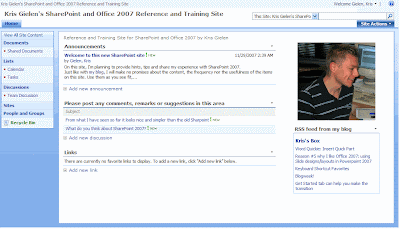
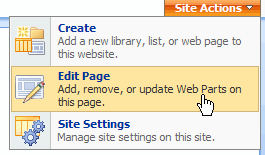 As a test, I tried to get the RSS feed of this blog into my SharePoint 2007 site. This was easier than I expected. Using the Site Actions button at the upper right corner, you need to select Edit Page. This will enable you to modify the home page.
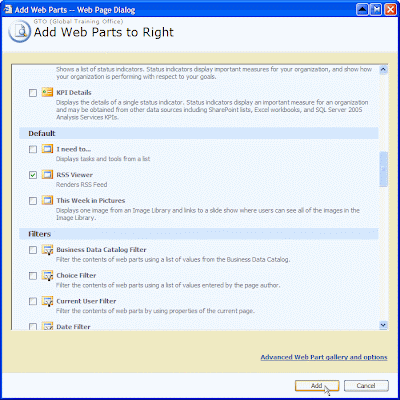
Clicking the button Add a Web Part in the right column will give you a dialog box where you can select the various Web Parts that are available. One of the options is RSS Viewer:
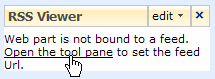 This will add an RSS Viewer to the right column. To link it to a real RSS feed, you need to click the link Open the tool pane. This will open a pane at the right hand site, where you can fill in the feed URL and the number of items you want to show.
You can also select whether you want to display only the title, or the title and the full description: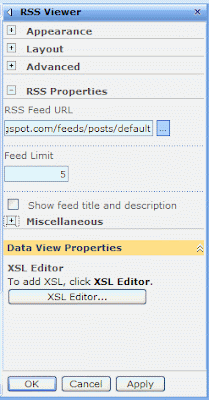 If you're really brave, you can even change the XSLT that is used to display the RSS feed, but the default settings seems to work just fine: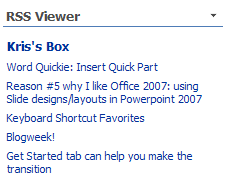
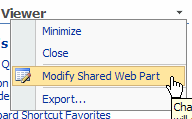 The final modification I made was to change the layout.
I clicked the arrow at the right hand side of the title, and selected Modify Shared Web Part. That will open the tool pane again, where you can make modifications for Appearance, Layout and some Advanced Settings.
I changed the title and selected another "chrome" (Title and Border instead of the default chrome). And this is the end result:
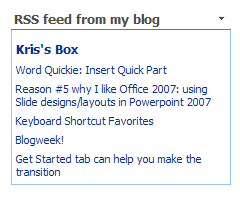 In a matter of minutes, I added my blog feed to the SharePoint 2007 site. Cool!

 As a test, I tried to get the RSS feed of this blog into my SharePoint 2007 site. This was easier than I expected. Using the Site Actions button at the upper right corner, you need to select Edit Page. This will enable you to modify the home page.
Clicking the button Add a Web Part in the right column will give you a dialog box where you can select the various Web Parts that are available. One of the options is RSS Viewer:

 This will add an RSS Viewer to the right column. To link it to a real RSS feed, you need to click the link Open the tool pane. This will open a pane at the right hand site, where you can fill in the feed URL and the number of items you want to show.
You can also select whether you want to display only the title, or the title and the full description:
 If you're really brave, you can even change the XSLT that is used to display the RSS feed, but the default settings seems to work just fine:
 The final modification I made was to change the layout.
I clicked the arrow at the right hand side of the title, and selected Modify Shared Web Part. That will open the tool pane again, where you can make modifications for Appearance, Layout and some Advanced Settings.
I changed the title and selected another "chrome" (Title and Border instead of the default chrome). And this is the end result:
 In a matter of minutes, I added my blog feed to the SharePoint 2007 site. Cool!
Subscribe to:
Posts (Atom)