I've talked before about the Interactive Guides on where to find a command in Office 2007, if you know where it was in 2003. The links still work, but meanwhile Microsoft has put them all on one page.
You not only get links to the Interactive Guides for Access, Excel, Word, PowerPoint and Outlook, you can also download them.
Also, on that same page, you'll find links to Mapping Workbooks, which are Excel Workbooks that contain lists of all Office 2003 menu and toolbar commands and their locations in the 2007 Office system.
Showing posts with label Office 2007. Show all posts
Showing posts with label Office 2007. Show all posts
Tuesday, December 4, 2007


Monday, November 26, 2007
Keyboard Shortcut Favorites
I am one of those guys who likes to use Keyboard Shortcuts a lot. While I'm not particularly fond of the way Office 2007 provides keyboard access to all entries on the Ribbon (*), I do use quite a few of the "old-fashioned" Keyboard Shortcuts that worked in previous versions of Office. Luckily, all of the keyboard shortcuts in Office 2007 continue to work exactly as they did before.
These are a few of my favorites:
Excel 2007:
These are a few of my favorites:
Excel 2007:
- F2: enter formula
- CTRL+PageDown / CTRL + PageUp: Previous/Next Worksheet
- CTRL+0 (zero, not Num key zero): Hide column
- SHIFT+CTRL+0 (zero, not Num key zero): Show column
- CTRL+9 (nine, not Num key nine): Hide row
- SHIFT+CTRL+9 (nine, not Num key nine): Show row
- ALT+=: AUTOSUM
- CTRL+SHIFT+U: Resize formula bar
- When entering a formula: SHIFT+CTRL+A: fill in arguments
- CTRL+` (left apostrophe, on most keyboards above the TAB key): show formulas in cells
- CTRL+[ / CTRL+]: Increase/Decrease font size with 1pt
- CTRL+SHIFT+SPACEBAR: Insert a non-breaking space
- CTRL+SHIFT+-: Insert a non-breaking hyphen
- CTRL+-: Insert an optional hyphen
- CTRL+SPACEBAR: Remove formatting (particularly useful to remove Character Formatting)
- CTRL+K: Insert a hyperlink
- SHIFT+F5: Toggle through the last 3 locations where you were editing
- SHIFT+F3: Change case
- Quickly add a new slide, using the Layout you want: CTRL+M, Alt (**), H, L
- TAB: Move through all objects on a slide, even the ones that are not visible (behind another object). Start by selecting any object that is not a text box, then (repeatedly) press TAB.
- In presentation mode: press B to make the screen Black, B again to return to your slide. Also, press the slide number, followed by ENTER, to move to that slide.
- (*) Pressing and releasing the ALT key will give you 'KeyTips', letters that you can press to activate a tab or button:

Another way to get to all entries on the Ribbon is pressing F10, and then using the arrow keys to select the Tab and button you need. - (**) Press and Release the ALT key.

Friday, October 26, 2007
Get Started tab can help you make the transition
Microsoft is offering 3 free downloads that add a "Get Started" tab to Word, Excel and PowerPoint 2007. This tab is something they probably should have included in the product itself when Office 2007 came to the market about a year ago, but at least you can download and install it now yourself.
The tab contains some useful links to ease the transition to the new version of the Office packages.
The icons on the Get Started tab are similar for each of the products. This is the Excel version:
Here are the links:
The tab contains some useful links to ease the transition to the new version of the Office packages.
The icons on the Get Started tab are similar for each of the products. This is the Excel version:

- Interactive Guide is a direct link to the interactive guide that Microsoft put on the Office webpages, which helps in finding a command in Office 2007, if you know where it is in Office 2003. I talked about it in one of my first posts on this blog. Very helpful, and now just a click away!
- Up to Speed with Excel 2007 is a direct link to the Introduction training pages on Office Online.
- Excel 2007 Overview and Get up to Speed with Excel 2007 are videos that demonstrate the new features and the basic stuff you need to know about the product.
- Discuss Excel 2007 leads you to the Excel newsgroups, community blogs, MVPs (Office Experts) and webcasts.
- Training leads to free self-paced courses.
- Videos take you to some general Office videos/demos.
- Excel 2007 will take you to the Office Online page for Excel, with an overview of all available help and training option.
Here are the links:
Wednesday, May 30, 2007
PowerPoint Quickie: Replace Fonts
When I started this blog a few months ago, I promised myself I would not let it die after a few weeks, unlike many other blogs. But I have to admit, keeping it alive has been more of a struggle than I thought. It just takes a lot of time and energy to regularly publish something that is worthwhile reading. I'm not running out of ideas, I'm just having difficulties finding the time to put them into quality posts.
Anyway, at least this is another Quickie for you. Sometimes, when you receive a PowerPoint presentation or some Powerpoint slides that you want to reuse in your own presentation, the fonts of text boxes don't match. The previous versions of PowerPoint had a nice feature to replace a specific font with another one for all slides of your presentation.
 PowerPoint 2007 still has that feature, but I couldn't find it. So I went to the Office website and looked at the Interactive Guide for PowerPoint that shows where to find a command in office 2007 if you know where it was in Office 2003.
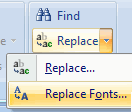
It turned out it was surprisingly straightforward: it's on the Home tab of the Ribbon, in the Replace-button.
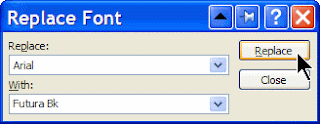 Don't click the button itself, but the drop-down arrow next to it, and you'll be able to replace fonts quickly.
Anyway, at least this is another Quickie for you. Sometimes, when you receive a PowerPoint presentation or some Powerpoint slides that you want to reuse in your own presentation, the fonts of text boxes don't match. The previous versions of PowerPoint had a nice feature to replace a specific font with another one for all slides of your presentation.
 PowerPoint 2007 still has that feature, but I couldn't find it. So I went to the Office website and looked at the Interactive Guide for PowerPoint that shows where to find a command in office 2007 if you know where it was in Office 2003.
It turned out it was surprisingly straightforward: it's on the Home tab of the Ribbon, in the Replace-button.
 Don't click the button itself, but the drop-down arrow next to it, and you'll be able to replace fonts quickly.
Friday, March 23, 2007
Reason #4 why I like Office 2007: the new file format
The new file format that Office 2007 uses is an XML-based file format, which is stored on the hard disk in a compressed format. A standard ZIP-compression is used, which means that you can open Office 2007 files in a zip-compatible application.
This opens a lot of possibilities, but what I really like about it is that you can easily extract images or other embedded documents out of Word, Excel or PowerPoint files.
Better yet, this (finally!) gives me an easy way to find out why a PowerPoint presentation has a huge file size, even though I used "Compress Pictures..." before I saved.
I could put this into practice today: a colleague asked for my help because he had a PowerPoint presentation with about 30 slides, some of which contained pictures, and the file size was 11MB. Too large to send as an e-mail attachment in our organization.
I first looked at the obvious things: no master slides that were not used, no pictures that were scaled down to 25% or less, all pictures compressed and cropped... nothing that would explain the 11MB.
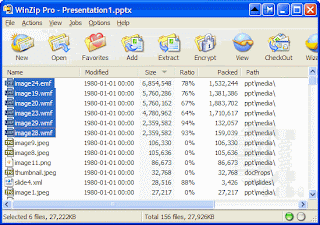 So I opened the file in PowerPoint 2007, saved it as an .pptx-file, opened that with WinZip and sorted the list on file size. The result? The presentation contained 6 images in .wmf-format, which apparently take a lot of space.
I could not have seen that in PowerPoint 2003: the images themselves were less than 300x300 pixels and were scaled at 100%, so everything looked OK.
After replacing the pictures with a .jpg-version, the PowerPoint presentation shrank to a mere 3 MB!
This opens a lot of possibilities, but what I really like about it is that you can easily extract images or other embedded documents out of Word, Excel or PowerPoint files.
Better yet, this (finally!) gives me an easy way to find out why a PowerPoint presentation has a huge file size, even though I used "Compress Pictures..." before I saved.
I could put this into practice today: a colleague asked for my help because he had a PowerPoint presentation with about 30 slides, some of which contained pictures, and the file size was 11MB. Too large to send as an e-mail attachment in our organization.
I first looked at the obvious things: no master slides that were not used, no pictures that were scaled down to 25% or less, all pictures compressed and cropped... nothing that would explain the 11MB.
 So I opened the file in PowerPoint 2007, saved it as an .pptx-file, opened that with WinZip and sorted the list on file size. The result? The presentation contained 6 images in .wmf-format, which apparently take a lot of space.
I could not have seen that in PowerPoint 2003: the images themselves were less than 300x300 pixels and were scaled at 100%, so everything looked OK.
After replacing the pictures with a .jpg-version, the PowerPoint presentation shrank to a mere 3 MB!
Wednesday, March 21, 2007
Office Quickie: View your document in multiple windows
Ever wanted to look at another slide in the same presentation while creating it? Or looking up another paragraph in the same document while working on another? Sure, you could split the window in Word 2003, but that was somewhat cumbersome and you only had a vertical split.
 Enter the world of Office 2007. In Word, Excel and PowerPoint, you'll find a neat new option in the View Ribbon: New Window. One click and it opens a new window containing the same document.
You can now rearrange both views manually, or use the Arrange All button to quickly put the documents next to each other.
So now you can easily work on a slide in PowerPoint and keep an overview of where it fits in the whole presentation, e.g. by keeping the Slide Sorter view and the slide you're working on, next to each other:

 Enter the world of Office 2007. In Word, Excel and PowerPoint, you'll find a neat new option in the View Ribbon: New Window. One click and it opens a new window containing the same document.
You can now rearrange both views manually, or use the Arrange All button to quickly put the documents next to each other.
So now you can easily work on a slide in PowerPoint and keep an overview of where it fits in the whole presentation, e.g. by keeping the Slide Sorter view and the slide you're working on, next to each other:

Wednesday, March 7, 2007
Word Quickie: Document Properties
When creating Office Documents, is'a good idea to fill in Document Properties. This metadata (like Title, Subject, Category, Keywords, ...) not only describes the document better, but it also will make it easier to find the document afterwards, as most desktop search programs will use the metadata to index the document.
In Office 2003, you could get to the Document Properties by selecting the Properties... from the File menu. In Office 2007, I expected it to be in the View or Review tab of the Ribbon, but it is somewhere else: you need to click the Microsoft Office button and select Prepare:
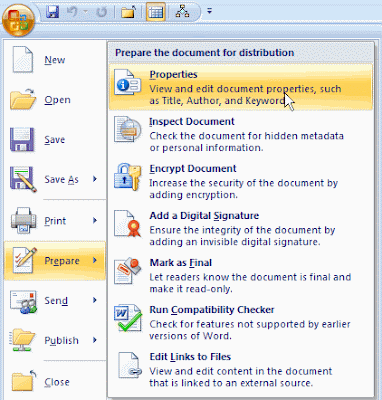
The idea behind the Prepare button is to consolidate all actions you might want to take when a document is ready to be published. There's some logic to putting the Document Properties there, although I would recommend starting with defining the Properties when creating a new document, rather than filling them in when the document is final, almost like an afterthought.
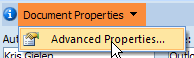
When selecting Properties, you get a pane at the top of the document for the common properties: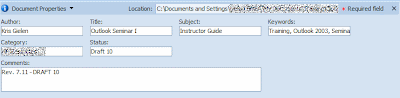 If you need custom properties, you click the Document Properties button, to get to the Advanced Properties:
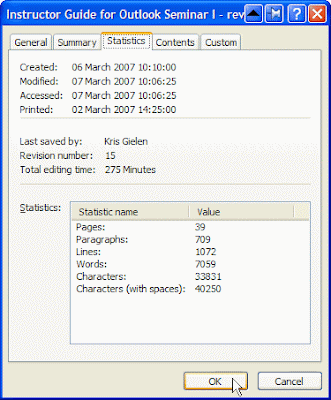
 This will open a dialog box that looks very much like the Office 2003 one, with a custom tab for custom properties, but also other information like Statistics:
In Office 2003, you could get to the Document Properties by selecting the Properties... from the File menu. In Office 2007, I expected it to be in the View or Review tab of the Ribbon, but it is somewhere else: you need to click the Microsoft Office button and select Prepare:

The idea behind the Prepare button is to consolidate all actions you might want to take when a document is ready to be published. There's some logic to putting the Document Properties there, although I would recommend starting with defining the Properties when creating a new document, rather than filling them in when the document is final, almost like an afterthought.
When selecting Properties, you get a pane at the top of the document for the common properties:
 If you need custom properties, you click the Document Properties button, to get to the Advanced Properties:
 This will open a dialog box that looks very much like the Office 2003 one, with a custom tab for custom properties, but also other information like Statistics:
Wednesday, February 28, 2007
Reason #3 why I like Office 2007: Conditional Formatting Power in Excel
I teach about Office 2003 regularly, and whenever I demonstrate the Conditional Formatting options in Excel 2003, one of the first questions I get is "Great, but can you have more than 3 conditions?". I have to disappoint people then, because the limit is 3. Until Excel 2007 arrived that is. In the new Excel 2007, you may have as many conditional formats as you like.
Better yet, a powerful series of commonly used Conditional Formatting rules are predefined, so visualizing information using color really is a matter of just a few clicks. The Conditional Formatting button also is prominently present on the Home tab of the Ribbon, an indication that the Excel team understands its power for users.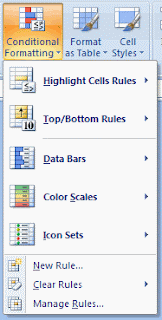 I particularly like the Data Bars and Color Scales options:
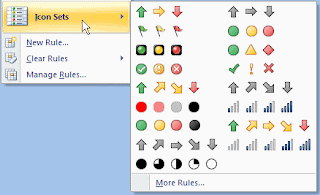 But I'm not so sure this option is as valuable as it looks like at first sight.
Suppose you have the following data about Sales in the first 5 months of the year: I'd like to use the 4 arrows option to quickly show whether data is going up or down, month by month. However, when I apply that arrow formatting on the range, this is the result:
 Not quite what I expected. The yellow arrows seems to indicate that February and March are better than January, but in fact, the trend is going down. Looking at the details of this predefined setup, I understand how Excel is using the arrows:
 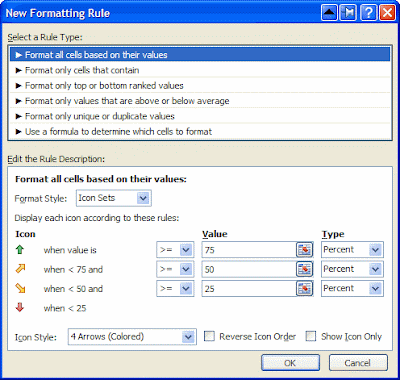 They are used to represent a relative value in the whole range of the cells, not compared to the previous or next cell. I think this is confusing. There should be an easy way to use arrows indicating whether a value goes up, or down throughout a range, but I haven't been able to figure out how to do that. If you do, please let me know.
Having said that, the Conditional Formatting improvements in Excel 2007 are huge! What I covered here is in fact only the tip of the iceberg.
Better yet, a powerful series of commonly used Conditional Formatting rules are predefined, so visualizing information using color really is a matter of just a few clicks. The Conditional Formatting button also is prominently present on the Home tab of the Ribbon, an indication that the Excel team understands its power for users.
 I particularly like the Data Bars and Color Scales options:
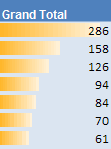
- Data Bars display a color bar across cells to display the relative magnitude of values in a cell range. It makes is very easy to get a visual representation of your data:
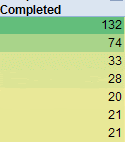
- Color Scales let you color cells using a color gradient. So you really can show subtle differences between numbers in different colors:


 But I'm not so sure this option is as valuable as it looks like at first sight.
Suppose you have the following data about Sales in the first 5 months of the year:
 I'd like to use the 4 arrows option to quickly show whether data is going up or down, month by month. However, when I apply that arrow formatting on the range, this is the result:
 Not quite what I expected. The yellow arrows seems to indicate that February and March are better than January, but in fact, the trend is going down. Looking at the details of this predefined setup, I understand how Excel is using the arrows:
  They are used to represent a relative value in the whole range of the cells, not compared to the previous or next cell. I think this is confusing. There should be an easy way to use arrows indicating whether a value goes up, or down throughout a range, but I haven't been able to figure out how to do that. If you do, please let me know.
Having said that, the Conditional Formatting improvements in Excel 2007 are huge! What I covered here is in fact only the tip of the iceberg.
Tuesday, February 27, 2007
Listen to the Office UI guys
The TWIT Netcast network is offering a very interesting podcast this week: 2 people of the Office 2007 UI team, Jensen Harris and Jacob Jaffe, are talking about the new interface in episode 15 of "Windows Weekly with Paul Thurrott".
And while we're at it: other podcasts I like to listen to are the original TWIT (This Week in Tech, hosted by Leo Laporte) and the incredible Cranky Geeks. Yes, I admit, I am a big fan of John C. Dvorak.
And while we're at it: other podcasts I like to listen to are the original TWIT (This Week in Tech, hosted by Leo Laporte) and the incredible Cranky Geeks. Yes, I admit, I am a big fan of John C. Dvorak.
Tuesday, February 20, 2007
Office Quickie: Minimize the Ribbon
The Ribbon does not take (a lot) more screen real estate than the toolbars in previous versions of Microsoft Office, but sometimes you might want to have as much space as possible.
There are 2 quick ways to minimize the Ribbon:
There are 2 quick ways to minimize the Ribbon:
- double-click the active tab on the Ribbon, or
- press CTRL+F1
Reason #2 why I like Office 2007: The Selection Pane in PowerPoint
If you don't use PowerPoint a lot, you might not fully appreciate why I love the new Selection Pane in PowerPoint 2007. I often need to play around with various objects on my slide, e.g. using animation effects to build a complex figure or highlighting certain aspects of the slide text.
In previous versions of PowerPoint, with complex slides it was not easy to understand the animation sequence, as the shapes and groups in the Custom Animation Pane were labeled "Rectangle 14", "Arrow 26" or "Group 31". These names don't help a lot when trying to get a complex animation right.
This is still the case in PowerPoint 2007, but you can easily change the name to something meaningful! To start, display the Selection Pane by clicking the Select button in the Home tab of the Ribbon: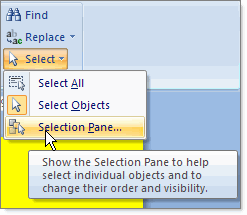 This will give you access to a pane on the right hand side of the screen, displaying all elements on the slide:
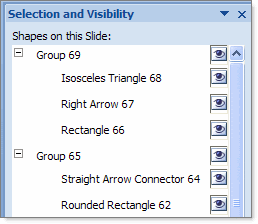 Double-clicking any of these elements will allow you to rename them (giving them a meaningful name):
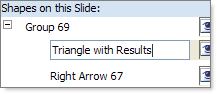 That way, it's a lot easier to work with the Custom Animation sequence:
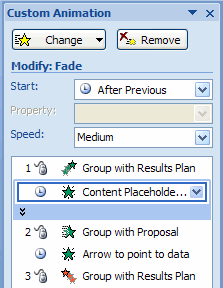 Better yet, the Selection Pane also allows to select objects that are 'behind' other objects, e.g. to change the properties or to move them, without having to move the objects that are 'above' them.
An example will clarify this: suppose I have a slide with the Agenda of the presentation. I want to indicate that the next topic will be "Purpose of the Project" by putting a rounded rectangle behind the text: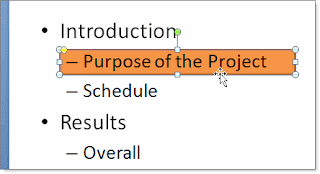 If I ever wanted to change something about the rectangle, like the color or custom animation, it was very difficult to select it in previous versions of PowerPoint: the text of the slide is in front of the rectangle, making it virtually impossible to select it. I had to move away the text or send the text "To Back" to get access to the rectangle. In PowerPoint 2007 it is as easy as selecting the rectangle in the Selection Pane!
In previous versions of PowerPoint, with complex slides it was not easy to understand the animation sequence, as the shapes and groups in the Custom Animation Pane were labeled "Rectangle 14", "Arrow 26" or "Group 31". These names don't help a lot when trying to get a complex animation right.
This is still the case in PowerPoint 2007, but you can easily change the name to something meaningful! To start, display the Selection Pane by clicking the Select button in the Home tab of the Ribbon:
 This will give you access to a pane on the right hand side of the screen, displaying all elements on the slide:
 Double-clicking any of these elements will allow you to rename them (giving them a meaningful name):
 That way, it's a lot easier to work with the Custom Animation sequence:
 Better yet, the Selection Pane also allows to select objects that are 'behind' other objects, e.g. to change the properties or to move them, without having to move the objects that are 'above' them.
An example will clarify this: suppose I have a slide with the Agenda of the presentation. I want to indicate that the next topic will be "Purpose of the Project" by putting a rounded rectangle behind the text:
 If I ever wanted to change something about the rectangle, like the color or custom animation, it was very difficult to select it in previous versions of PowerPoint: the text of the slide is in front of the rectangle, making it virtually impossible to select it. I had to move away the text or send the text "To Back" to get access to the rectangle. In PowerPoint 2007 it is as easy as selecting the rectangle in the Selection Pane!
Monday, February 5, 2007
Reason #1 why I like Office 2007: The Ribbon
The Ribbon is a bold move from Microsoft, but I believe it's the right one. As I mentioned in a previous post, your first encounter with the new User Interface might be a rough one, as it IS different from the menu system. At very first sight, you might think there still is a menu in Word, Excel and PowerPoint, as you still see "menu-like" words at the top, e.g. "View" or "Insert" or "Page Layout". But when you click on them, they don't open a menu, but the icons change at the top, giving you immediate access to the features you need the most.
 As an example, clicking "Insert" in Word 2007 will give you one-click access to the most common elements you are likely to insert in a document. Instead of going through a series of menu options to insert a Picture from your hard disk, you simply click the Picture icon.
 Need to add the Page Number to your document? Simply click Page Number and you can immediately choose between some most common ways of formatting the page number. It really makes doing the most common things in Word, Excel and PowerPoint a lot easier and faster to find.
Bill Gates said during a keynote at PDC 05 that 9 out of 10 features that people request for the next version of Office... are already in the product. People just had difficulties finding them. A lot of the features were buried in submenus, obscure dialog boxes or task pane windows. The Ruler in Office 2007 makes finding a feature a lot easier, at least for most of the thing you'd like to do. It's pretty well organized, and you find most items where you expect them to be.
I've been using the Ruler for about a month now, and I hate it when I have to go back to a menu-driven system. Yes, it does take some time to learn a new way of working, but it very quickly pays out: you can focus more on the document you're creating or editing, instead of trying to find out how something works.
It's not perfect, and some strange decisions were taken (why do I need to go to "View" to get to Macros?), but overall, this will improve your productivity.
 At very first sight, you might think there still is a menu in Word, Excel and PowerPoint, as you still see "menu-like" words at the top, e.g. "View" or "Insert" or "Page Layout". But when you click on them, they don't open a menu, but the icons change at the top, giving you immediate access to the features you need the most.
 As an example, clicking "Insert" in Word 2007 will give you one-click access to the most common elements you are likely to insert in a document. Instead of going through a series of menu options to insert a Picture from your hard disk, you simply click the Picture icon.
 Need to add the Page Number to your document? Simply click Page Number and you can immediately choose between some most common ways of formatting the page number. It really makes doing the most common things in Word, Excel and PowerPoint a lot easier and faster to find.
Bill Gates said during a keynote at PDC 05 that 9 out of 10 features that people request for the next version of Office... are already in the product. People just had difficulties finding them. A lot of the features were buried in submenus, obscure dialog boxes or task pane windows. The Ruler in Office 2007 makes finding a feature a lot easier, at least for most of the thing you'd like to do. It's pretty well organized, and you find most items where you expect them to be.
I've been using the Ruler for about a month now, and I hate it when I have to go back to a menu-driven system. Yes, it does take some time to learn a new way of working, but it very quickly pays out: you can focus more on the document you're creating or editing, instead of trying to find out how something works.
It's not perfect, and some strange decisions were taken (why do I need to go to "View" to get to Macros?), but overall, this will improve your productivity.
Friday, January 19, 2007
10 reasons why I like Microsoft Office 2007
Over the next weeks, I plan to publish the 10 (or so) reasons why I like the new Microsoft Office 2007 suite. It will be a collection of new features and different ways how to do things, which I hope will convince you that this is a significant upgrade.
Wednesday, January 17, 2007
Where is the ***-command?
I'll be talking about the Ribbon in Office 2007 in one of my next posts, as it is probably the most obvious and annoying changes... at first. In fact, I really like the bold move of the Microsoft Office team to get rid of the menu structure, but there is a steep learning curve.
When you first start using Office 2007 products, it really feels nice: the Ribbon feels intuitive, and you can quickly get started to create your document. But within minutes, you might feel lost: you are looking for a specific command and you simply can't find it. The traditional menu structure no longer exists and what seemed trivial at first, now becomes a source of frustration and maybe even anger: the Ribbon does not seem to contain the command you're looking for and the more you search for it, the more unreasonable the whole Ribbon idea seems.
Luckily there are quite a few ways to find what your looking for:
When you first start using Office 2007 products, it really feels nice: the Ribbon feels intuitive, and you can quickly get started to create your document. But within minutes, you might feel lost: you are looking for a specific command and you simply can't find it. The traditional menu structure no longer exists and what seemed trivial at first, now becomes a source of frustration and maybe even anger: the Ribbon does not seem to contain the command you're looking for and the more you search for it, the more unreasonable the whole Ribbon idea seems.
Luckily there are quite a few ways to find what your looking for:
- First of all, there is the Help. Help information in the Microsoft Office products have been constantly improved over the last couple of versions, and this release is no exception. If you don't find a command, click the Help button at the right hand side (or press F1).
Type what you are looking for, and in a lot of cases, the answer will be in the first couple of results. Example: You want to find the Help > About screen in Microsoft Word 2007. It does not seem be be anywhere in the Ribbon. Press F1, type "help about" and the first result gives you instructions on how to "Get the version number for your Office program and information about your computer". (In this case, it's not really in the Ribbon, but in the Microsoft Office Button > Word Options > Resources)
 - On the Office website, there are real cool interactive guides to quickly find your command: The guide opens with a familiar Office 2003 menu. Just click the menu or command you are looking for, and the tool will tell (and show!) you where it is in Office 2007. There's a Word, Excel and PowerPoint version.
- Finally, there is a lot of other Ribbon information available on the Office website. You can find a series of Workbooks with a mapping between the "old" Office 2003 menu structure and the new Ribbon in the Ribbon Mapping Workbooks for Word, Excel, PowerPoint and Outlook.

Subscribe to:
Posts (Atom)