I teach about Office 2003 regularly, and whenever I demonstrate the
Conditional Formatting options in Excel 2003, one of the first questions I get is "Great, but can you have more than 3 conditions?". I have to disappoint people then, because the limit is 3. Until Excel 2007 arrived that is. In the new Excel 2007, you may have as many conditional formats as you like.
Better yet, a powerful series of commonly used Conditional Formatting rules are predefined, so visualizing information using color really is a matter of just a few clicks. The Conditional Formatting button also is prominently present on the Home tab of the Ribbon, an indication that the Excel team understands its power for users.
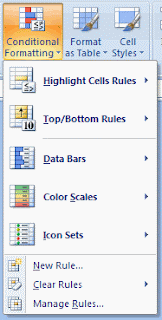
I particularly like the Data Bars and Color Scales options:
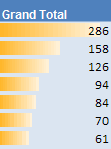
- Data Bars display a color bar across cells to display the relative magnitude of values in a cell range. It makes is very easy to get a visual representation of your data:
- Color Scales let you color cells using a color gradient. So you really can show subtle differences between numbers in different colors:

There are other options as well. I was excited about
Icons Sets at first: it looked like the icons would allow for a nice indication of whether a value was going up or down:
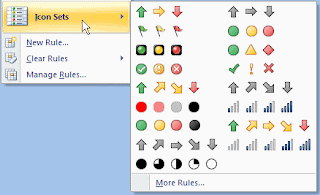
But I'm not so sure this option is as valuable as it looks like at first sight.
Suppose you have the following data about Sales in the first 5 months of the year:

I'd like to use the 4 arrows option to quickly show whether data is going up or down, month by month. However, when I apply that arrow formatting on the range, this is the result:

Not quite what I expected. The yellow arrows seems to indicate that February and March are better than January, but in fact, the trend is going down. Looking at the details of this predefined setup, I understand how Excel is using the arrows:
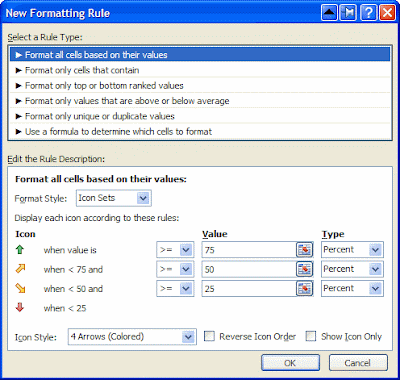
They are used to represent a relative value in the whole range of the cells, not compared to the previous or next cell. I think this is confusing. There should be an easy way to use arrows indicating whether a value goes up, or down throughout a range, but I haven't been able to figure out how to do that. If you do, please let me know.
Having said that, the Conditional Formatting improvements in Excel 2007 are huge! What I covered here is in fact only
the tip of the iceberg.
 Apparently the system was using inches by default. It took me more than an hour of searching on how I could change this into mm... only to find out that you don't define this in Excel, or in the Printer Options. Excel (and the other Office products), use whatever is specified in the Regional and Language Options in the Control Panel.
 Restarting Excel gave me cm instead of inches:
 Apparently the same applies for Office 2003.